Kickstarter Tip #7 - Errored Backers and Failed Credit Cards, how to fix them on Kickstarter
It's inevitable that there will be failed pledges at the end of your Kickstarter campaign. Kickstarter automaticaly alerts backers about the failed pledge and provides info on how to fix. You must take it a step further by messaging the backers and providing instructions. I also made a video that makes it easier for them to see how to do it. Here's the message I send out to backers who have failed pledges. There are only 7 days for fixing the pledges before they are cancel
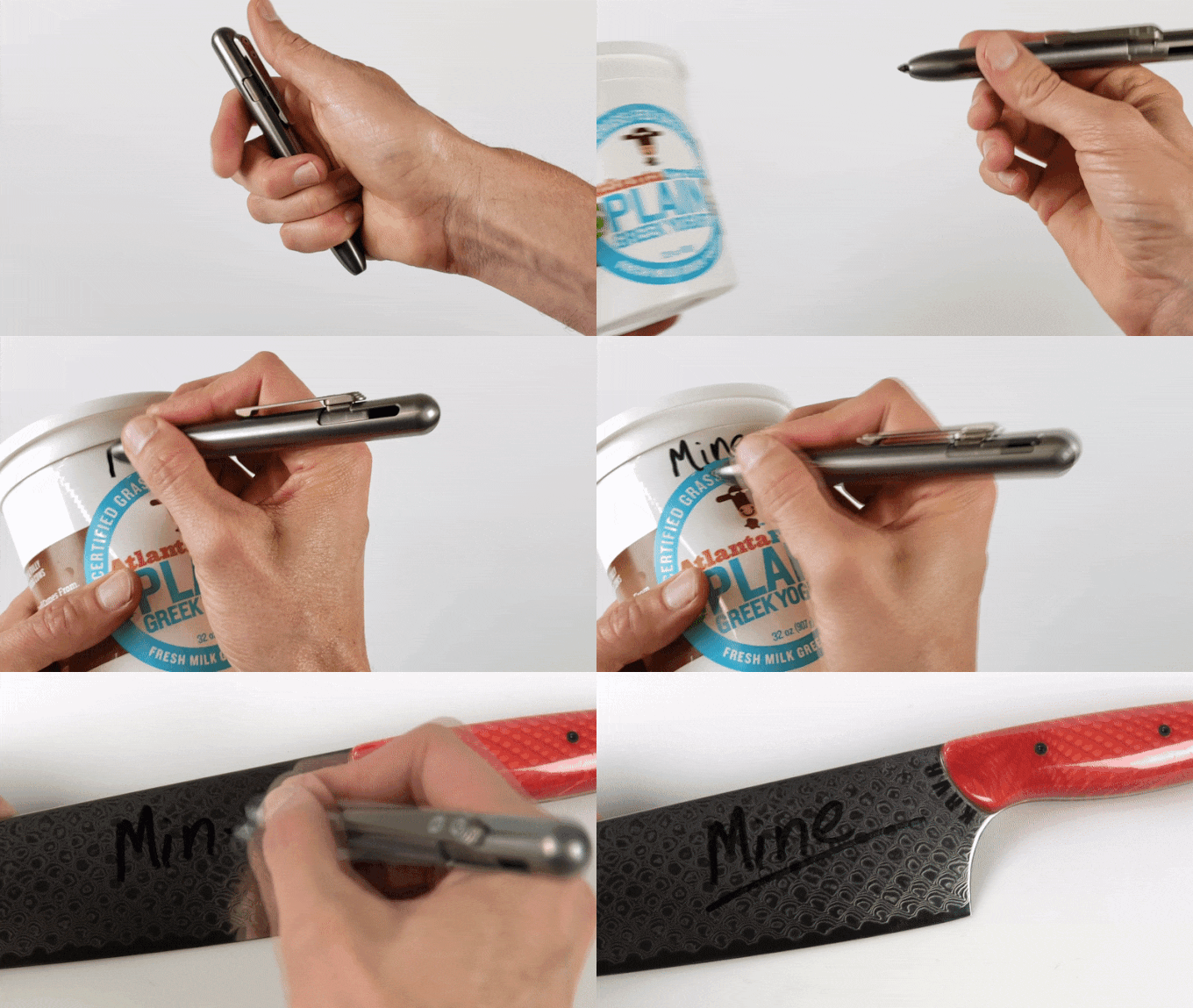
Indiegogo Tip #1: Adding Animated Gifs To The Page
Indiegogo allows you to use html to edit the page layout. If you're transitioning from Kickstarter, you'll find that there's much more flexibility to the appearance of the page. One thing that's difficult to add is animated .gifs. 1. The Gifs must be hosted somewhere else. You can host these on your website, a public cloud storage folder, or photo site. The file must have a publicly accessible url (EXAMPLE: https://static.wixstatic.com/media/1bd2e6_0e4a13930b8f4332ab7935776b
Kickstarter Tip #6 - How to fill out the project survey
Here is an instructional video on where to find, and how to fill out a project survey on Kickstarter.
Kickstarter Tip #5 - Easy way to get backers to double their pledge
We've discovered an easy way to convince backers to double their pledges. This works particularly well with Early Bird pledges, or offering a second item at a discount. Usually one of the lowest pledge levels only includes 1 item, and often times these are EB pledge levels. You can tell people on the Kickstarter page, or in the pledge description that they can add extra $$ or double their pledge for more than one item, but often times backers don't read that. The easy way


Kickstarter Tip #4 - Permissions for marketing agencies
Marketing agencies that work with you to promote your Kickstarter campaign will need to be added as a collaborator and given a specific amount of permissions. Figuring out which permissions to give them can be tricky, so here's a guide. The most basic permissions that a marketer will need is the ability to "view backing activity and access the backer report". This gives them the ability to create tracking links so they can see what advertisement channels are bringing in bac

Kickstarter Tip #3 - Using Animated Gifs
Animated Gifs are a great way to show potential backers how something appears or functions without having to watch the project video. The trick to creating a good animated gif is to resize it to the Kickstarter image width (680px wide) and keep the file size to a minimum (5-10mb) so that it will load quickly. Beware the 3 ring circus! I've seen many campaigns with way too many animated gifs. Sometimes almost every image is an animated gif. This makes the page load very slo
Kickstarter Tip #2 - How to change the reward delivery address in your survey
One common question from Kickstarter backers is, "How do I change my delivery address". If the creator has allowed the option for backers to be able to change delivery address, then follow these simple steps. Click on your icon in the top right. Select the project that you backed and want to change the address. On the project page, click on the blue "View Pledge" button on the right side. A new page pops up. Click on "Survey" in the center. Scroll down and click "Edit


Kickstarter Tip #1 - Formatting Images for Kickstarter Project Page
Formatting images for the best appearance on Kickstarter is tricky and works best if you follow a few guidelines. Image Width Kickstarter resizes any image you upload to 680px wide. This means that you should save images as multiples of 680px for the best resizing quality. Ideally just save the images destined for the Kickstarter page as 680px wide. Mobile Phone Cropping Issue The width of the images gets cropped when viewing on mobile phones, even in the Kickstarter app. Th


